• Package: @cometchat/chat-uikit-react
  • Framework: Next.js
  • Key components: CometChatConversations + CometChatMessageList
  • Required setup: CometChatUIKit.init(UIKitSettings) then CometChatUIKit.login("UID")
  • Parent guide: Next.js Integration
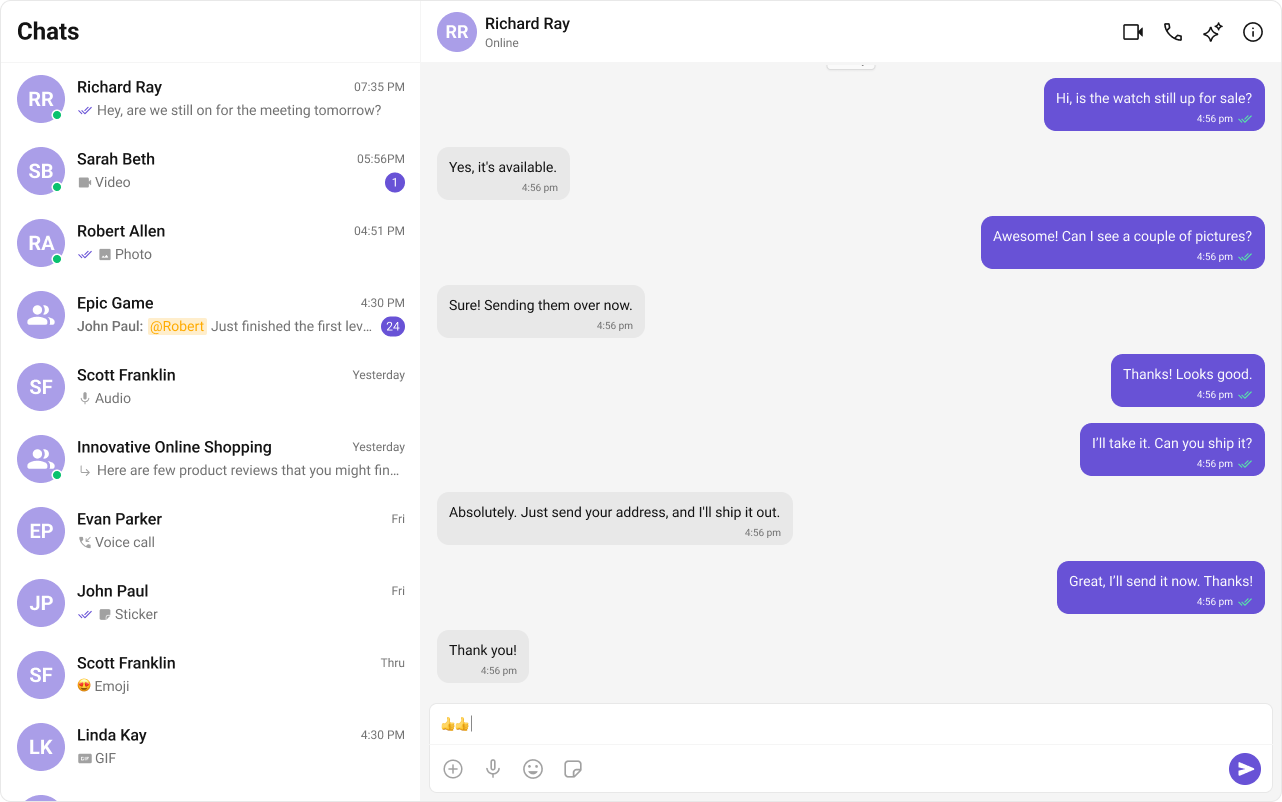
Two-panel chat layout: conversation list on the left, active chat on the right. Supports 1:1 and group conversations with real-time updates.

User Interface Overview

Three sections:
  1. Sidebar (Conversation List) — active conversations (users and groups)
  2. Message View — messages for the selected conversation
  3. Message Composer — text input with media, emoji, and reaction support

Step-by-Step Guide

1

Create Sidebar

Let’s create the Sidebar component which will render different conversations.

Folder Structure

Create a CometChatSelector folder inside your src/app directory and add the following files:
src/app/
│── CometChatSelector/
   ├── CometChatSelector.tsx
   ├── CometChatSelector.css

Download the Icon

These icons are available in the CometChat UI Kit assets folder. You can find them at:
🔗 GitHub Assets Folder
CometChatSelector.tsx
import { useEffect, useState } from "react";
import { Conversation, Group, User } from "@cometchat/chat-sdk-javascript";
import { CometChatConversations, CometChatUIKitLoginListener } from "@cometchat/chat-uikit-react";
import { CometChat } from '@cometchat/chat-sdk-javascript';
import "./CometChatSelector.css";
interface SelectorProps {
    onSelectorItemClicked?: (input: User | Group | Conversation, type: string) => void;
}
export const CometChatSelector = (props: SelectorProps) => {
    const {
        onSelectorItemClicked = () => { },
    } = props;
    const [loggedInUser, setLoggedInUser] = useState<CometChat.User | null>();
    const [activeItem, setActiveItem] = useState<
        CometChat.Conversation | CometChat.User | CometChat.Group | CometChat.Call | undefined
    >();

    useEffect(() => {
        let loggedInUser = CometChatUIKitLoginListener.getLoggedInUser();
        setLoggedInUser(loggedInUser);
    }, [CometChatUIKitLoginListener?.getLoggedInUser()]);

    return (
        <>            {loggedInUser && (
                <>
                    <CometChatConversations
                        activeConversation={activeItem instanceof CometChat.Conversation ? activeItem : undefined}
                        onItemClick={(e) => {
                            setActiveItem(e);
                            onSelectorItemClicked(e, "updateSelectedItem");
                        }}
                    />
                </>
            )}
        </>
    );
}; 
2

Render Experience

Now we will create the CometChatNoSSR.tsx & CometChatNoSSR.css files. Here, we will initialize the CometChat UI Kit, log in a user, and build the messaging experience using CometChatMessageHeader, CometChatMessageList, and CometChatMessageComposer components.
src/
│── CometChatNoSSR/
│   ├── CometChatNoSSR.tsx
│   ├── CometChatNoSSR.css
CometChatNoSSR.tsx
import React, { useEffect, useState } from "react";
import { 
    CometChatMessageComposer, 
    CometChatMessageHeader, 
    CometChatMessageList, 
    CometChatUIKit, 
    UIKitSettingsBuilder 
} from "@cometchat/chat-uikit-react";
import { CometChat } from "@cometchat/chat-sdk-javascript";
import { CometChatSelector } from "../CometChatSelector/CometChatSelector";
import "./CometChatNoSSR.css";
const COMETCHAT_CONSTANTS = {
  APP_ID: "",
  REGION: "",
  AUTH_KEY: "",
};

const UID = "cometchat-uid-1"; // Replace with your actual UID
const CometChatNoSSR: React.FC = () => {
  const [user, setUser] = useState<CometChat.User | undefined>(undefined);
  const [selectedUser, setSelectedUser] = useState<CometChat.User | undefined>(undefined);
  const [selectedGroup, setSelectedGroup] = useState<CometChat.Group | undefined>(undefined);

  useEffect(() => {
    const UIKitSettings = new UIKitSettingsBuilder()
      .setAppId(COMETCHAT_CONSTANTS.APP_ID)
      .setRegion(COMETCHAT_CONSTANTS.REGION)
      .setAuthKey(COMETCHAT_CONSTANTS.AUTH_KEY)
      .subscribePresenceForAllUsers()
      .build();
    CometChatUIKit.init(UIKitSettings)
      ?.then(() => {
        console.log("Initialization completed successfully");
        CometChatUIKit.getLoggedinUser().then((loggedInUser) => {
          if (!loggedInUser) {
            CometChatUIKit.login(UID)
              .then((user) => {
                console.log("Login Successful", { user });
                setUser(user);
              })
              .catch((error) => console.error("Login failed", error));
          } else {
            console.log("Already logged-in", { loggedInUser });
            setUser(loggedInUser);
          }
        });
      })
      .catch((error) => console.error("Initialization failed", error));
  }, []);

  return user ? (
    <div className="conversations-with-messages">      <div className="conversations-wrapper">
        <CometChatSelector 
          onSelectorItemClicked={(activeItem) => {
            let item = activeItem;
            if (activeItem instanceof CometChat.Conversation) {
              item = activeItem.getConversationWith();
            }
            if (item instanceof CometChat.User) {
              setSelectedUser(item as CometChat.User);
              setSelectedGroup(undefined);
            } else if (item instanceof CometChat.Group) {
              setSelectedUser(undefined);
              setSelectedGroup(item as CometChat.Group);
            } else {
              setSelectedUser(undefined);
              setSelectedGroup(undefined);
            }
          }} 
        />
      </div>      {selectedUser || selectedGroup ? (
        <div className="messages-wrapper">
          <CometChatMessageHeader user={selectedUser} group={selectedGroup} />
          <CometChatMessageList user={selectedUser} group={selectedGroup} />
          <CometChatMessageComposer user={selectedUser} group={selectedGroup} />
        </div>
      ) : (
        <div className="empty-conversation">Select Conversation to start</div>
      )}
    </div>
  ) : undefined;
};

export default CometChatNoSSR;
3

Disabling SSR for CometChatNoSSR.tsx in Next.js

In this update, we will disable Server-Side Rendering (SSR) for CometChatNoSSR.tsx while keeping the rest of the application’s SSR functionality intact. This ensures that the CometChat UI Kit components load only on the client-side, preventing SSR-related issues.

Disabling SSR in index.tsx

Modify your index.tsx file to dynamically import the CometChatNoSSR.tsx component with { ssr: false }.
index.tsx
import { Inter } from "next/font/google";
import dynamic from "next/dynamic";

import '@cometchat/chat-uikit-react/css-variables.css';

const inter = Inter({ subsets: ["latin"] });
const CometChatComponent = dynamic(() => import("../CometChatNoSSR/CometChatNoSSR"), {
  ssr: false,
});

export default function Home() {
  return <CometChatComponent />;
}

Why disable SSR?

  • The CometChat UI Kit depends on browser APIs (window, document, WebSockets).
  • Next.js pre-renders components on the server, which can cause errors with browser-specific features.
  • By setting { ssr: false }, we ensure that CometChatNoSSR.tsx only loads on the client.
4

Update Global CSS

Next, add the following styles to global.css to ensure CometChat UI Kit is properly styled.
global.css
:root {
  --background: #ffffff;
  --foreground: #171717;
}

@media (prefers-color-scheme: dark) {
  :root {
    --background: #0a0a0a;
    --foreground: #ededed;
  }
}

/** Give your App a height of `100%`. Keep other CSS properties in the below selector as it is. */
.root {
  height: 100%;
}

#__next {
  height: 100%;
}

html,
body {
  height: 100%;
}

html,
body {
  max-width: 100vw;
  overflow-x: hidden;
}

body {
  color: var(--foreground);
  background: var(--background);
  font-family: Arial, Helvetica, sans-serif;
  -webkit-font-smoothing: antialiased;
  -moz-osx-font-smoothing: grayscale;
}

* {
  box-sizing: border-box;
  padding: 0;
  margin: 0;
}

a {
  color: inherit;
  text-decoration: none;
}

@media (prefers-color-scheme: dark) {
  html {
    color-scheme: dark;
  }
}
5

Run the project

npm run dev
For prop details and customization options, see the component reference pages: CometChatConversations, CometChatMessageList, CometChatMessageComposer, CometChatMessageHeader.

Next Steps